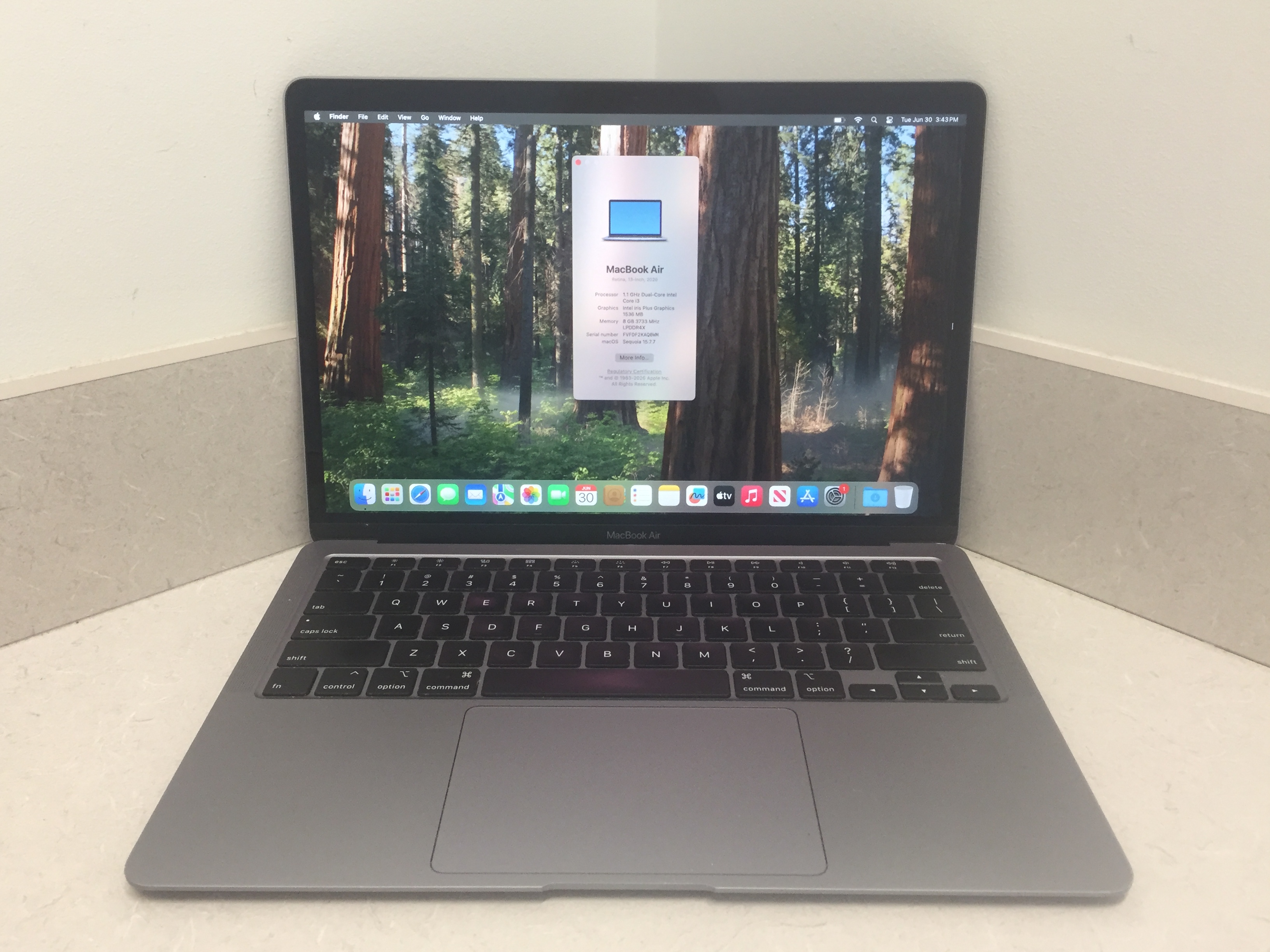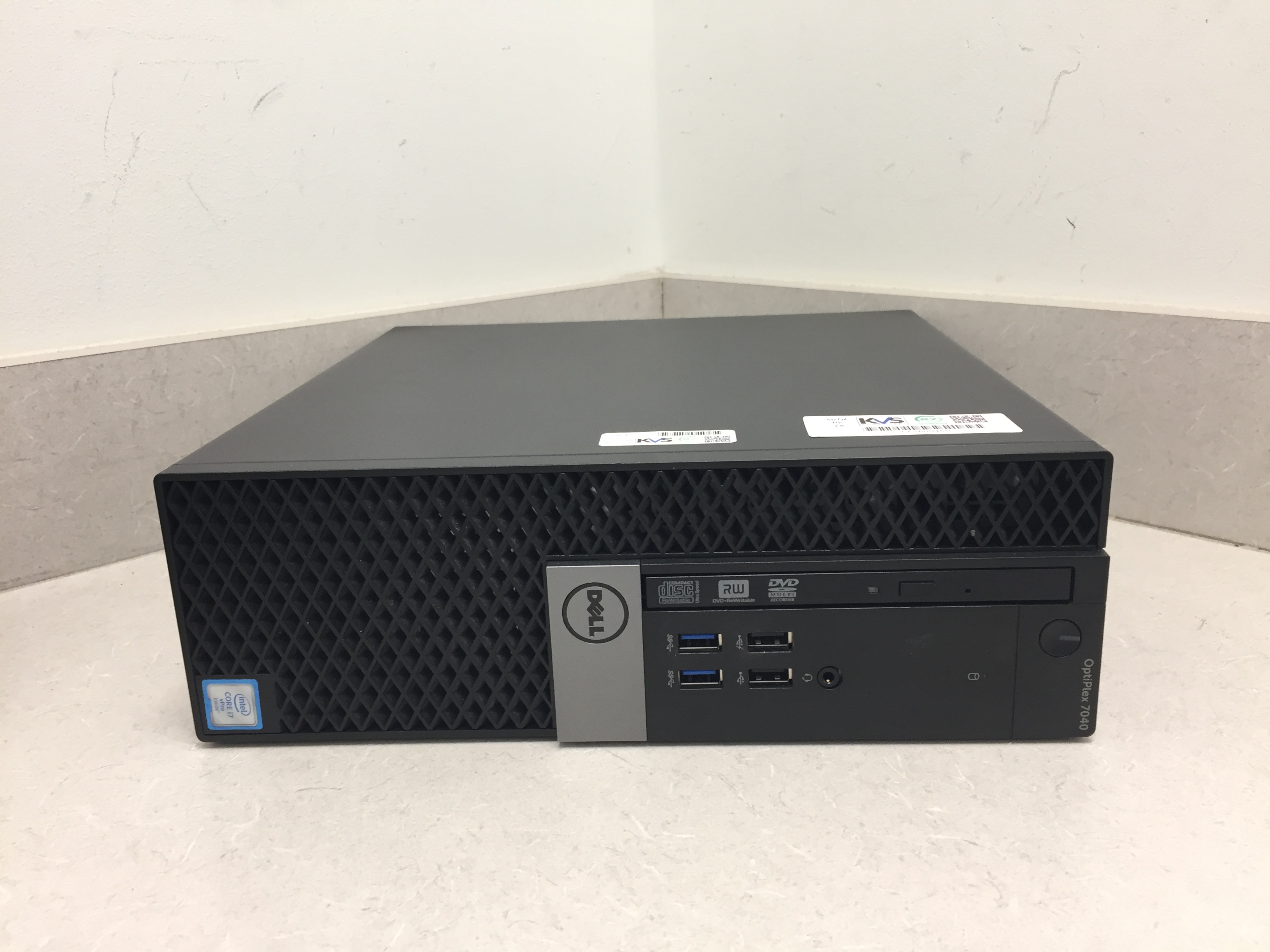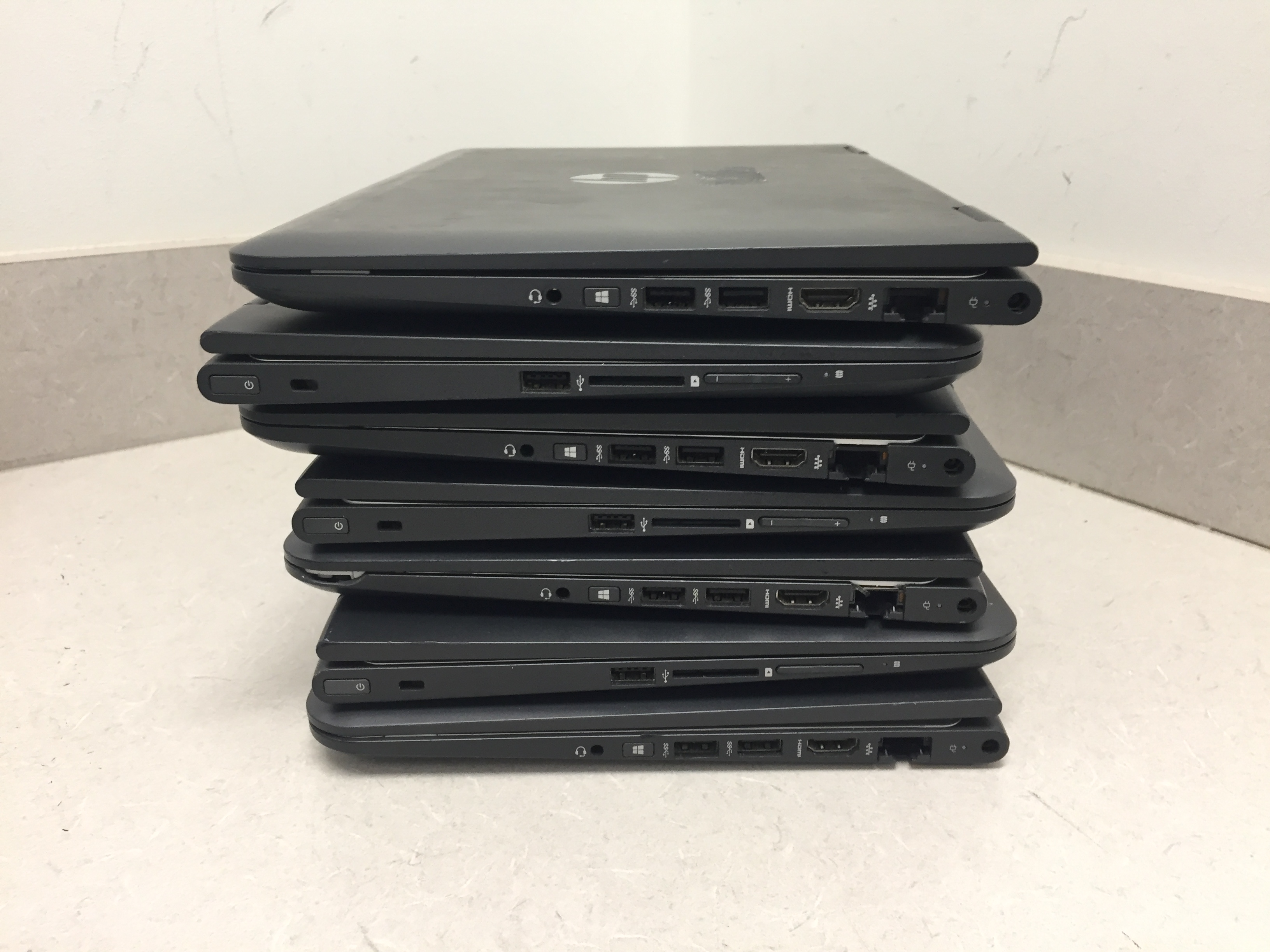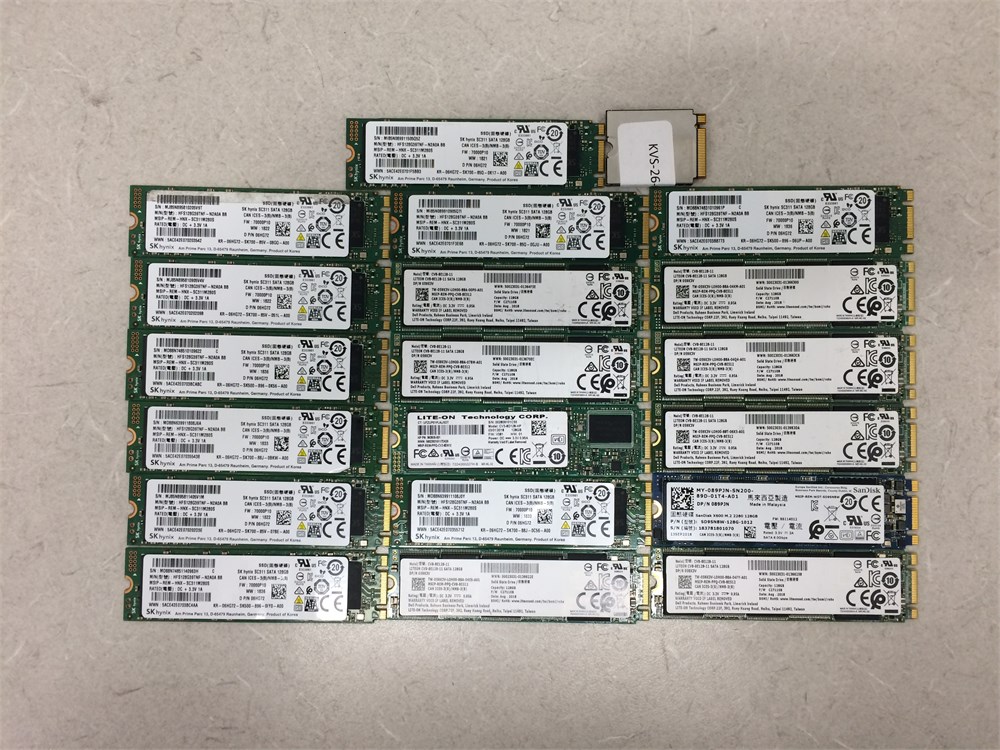
Storage technology has evolved rapidly over the past decade. Solid State Drives (SSDs) are much faster than traditional Hard Disk Drives (HDDs), allowing computers to boot in seconds and applications to load almost instantly. SSDs have no moving parts, making them more durable and energy-efficient. HDDs remain useful for storing large amounts of data at a lower cost. Many users choose a combination of both: an SSD for the operating system and frequently used applications, and an HDD for photos, videos, and backups. Upgrading to an SSD is one of the most effective ways to improve an older computer's performance.
Key Specifications to Consider
Processor (CPU)
The processor is the brain of your computer. Modern Intel Core and AMD Ryzen processors provide excellent performance for everyday tasks and professional workloads.
Choose:
Intel Core i5 or Ryzen 5 for regular users
Intel Core i7/i9 or Ryzen 7/9 for demanding applications
Memory (RAM)
RAM affects how smoothly your computer handles multiple applications.
Recommended:
8GB for everyday computing
16GB for office work and gaming
32GB or more for professional editing and development
Storage
Solid State Drives (SSD) provide significantly faster performance than traditional hard drives.
Recommended:
256GB SSD for basic users
512GB SSD for most professionals
1TB SSD for creators and gamers
Graphics Card (GPU)
A dedicated graphics card is important for gaming, video editing, CAD, and AI workloads.
Casual users can rely on integrated graphics, while professionals should consider dedicated NVIDIA or AMD graphics cards.
Display Quality
Choose a display based on your needs:
Full HD (1920×1080) for everyday use
QHD or 4K for creative professionals
High refresh rate (120Hz or above) for gaming
A quality display reduces eye strain and improves productivity.
Battery Life
If you frequently work away from your desk, battery life is an important consideration.
Look for laptops offering:
8–10 hours for standard use
Fast charging support
Energy-efficient processors
Connectivity
Modern computers should include:
USB-C ports
USB 3.0 or higher
HDMI
Wi-Fi 6 or Wi-Fi 7
Bluetooth
SD card reader (if required)
These ports ensure compatibility with modern accessories and peripherals.
Security Features
Protect your personal and business data by choosing computers that include:
Fingerprint reader
Facial recognition
TPM security chip
Built-in antivirus support
Automatic security updates
These features help safeguard sensitive information.
Budget Planning
Set a realistic budget before shopping.
Budget Range: Basic computing and browsing
Mid-Range: Office work, education, programming, and light editing
High-End: Gaming, engineering, AI development, and professional content creation
Buying according to your needs ensures the best value for your investment.
Maintenance Tips
To keep your computer performing efficiently:
Keep your operating system updated.
Install reliable antivirus software.
Remove unnecessary applications.
Clean dust from fans and vents regularly.
Back up important files to cloud storage or an external drive.
Regular maintenance extends your computer's lifespan and maintains peak performance.
Final Thoughts
Choosing the perfect computer doesn't have to be complicated. Start by identifying your primary needs, compare essential specifications, and select a system that fits both your workload and budget. Whether you're purchasing a laptop for school, a desktop for business, or a high-performance PC for gaming, investing in the right computer today will provide years of reliable performance.
By understanding processors, memory, storage, graphics, and security features, you can confidently choose a computer that meets your current requirements while remaining capable of handling future demands.